Prepare a Travel is the mandatory process where holders or their representatives select goods and itinerary information in order to generate the transaction codes required for Customs declarations.
This digital preparation replaces the manual completion of paper vouchers and should normally be completed before arriving at Customs.
Important: The carnet must first be signed by the holder or an authorised representative. Each prepared travel must then be signed before declarations and QR codes become active.
TABLE OF CONTENTS
- Validation (signing the Carnet)
- ATA Carnet App
- ATA Carnet Desktop
- General Rules Applicable to All Travel Preparations
Validation (signing the Carnet)
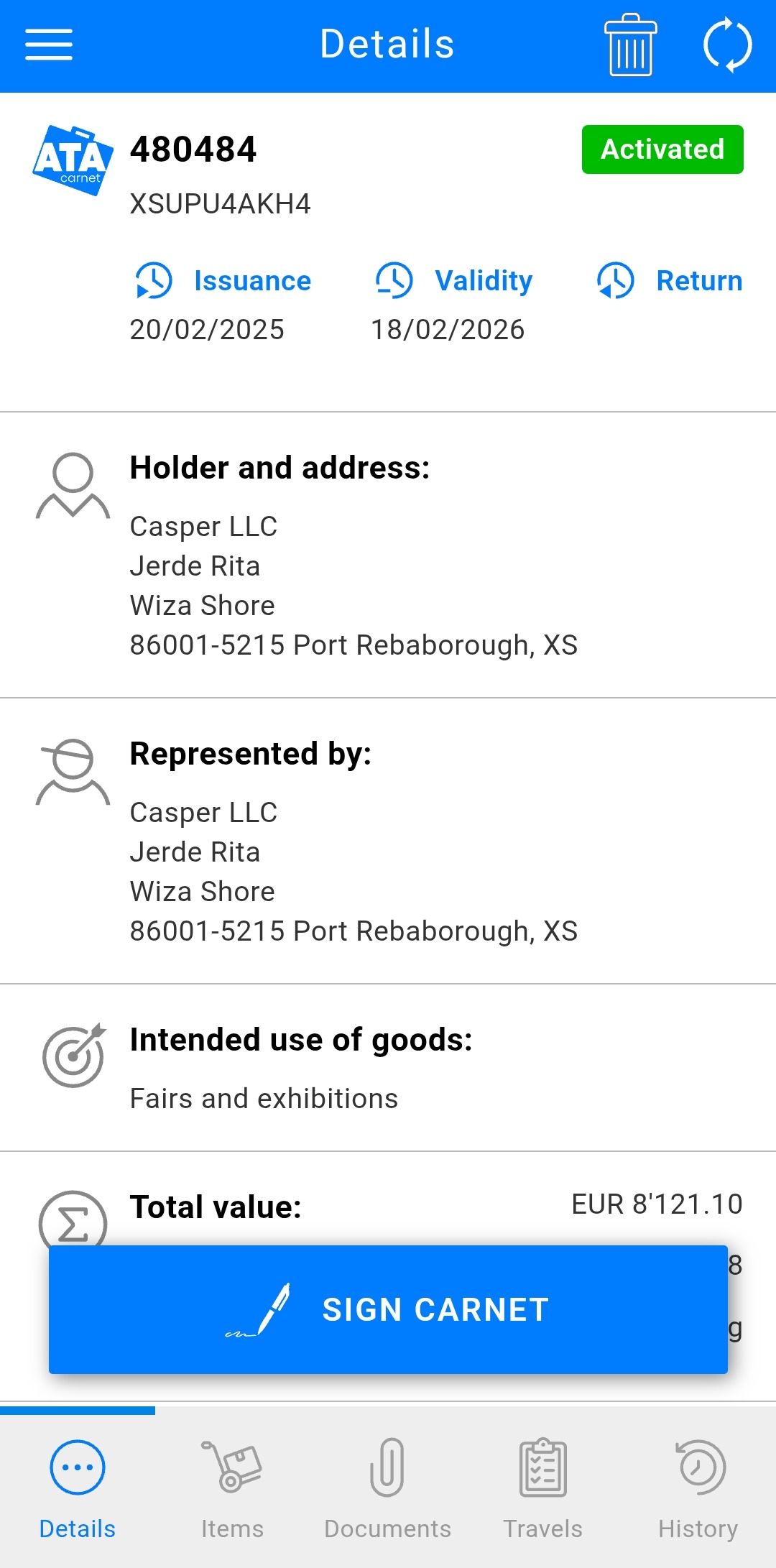 | Before you can prepare any travels or declarations, the holder or their authorised representative must sign the carnet to confirm its data.
|
Important – signing authority and error correction
- The initial carnet signature must be completed by the holder or an authorised legal representative.
- Administrative or support staff should not sign the carnet unless they are explicitly authorised to do so.
If a carnet is signed accidentally by a non‑authorised person, this does not automatically invalidate the carnet:
- The Issuing Association (IA) can correct the situation by performing a Carnet Amendment within 30 days of the issue date.
- When an amendment is applied:
- The existing digital signature becomes invalid.
- The carnet must be signed again by the correct authorised person after re‑issuance.
This mechanism allows accidental signing errors to be rectified without issuing a new carnet, provided no Customs transaction has yet taken place.
If you are unsure whether a carnet was signed correctly, contact your Issuing Association immediately before using the carnet at Customs.
Digital identity and responsibility
- Users must create their ATA Carnet account using their official name as shown on their passport or identity document.
- When a carnet or travel is signed, the signer’s account details are recorded and made visible to Customs during transactions.
- The digital signature represents consent and responsibility, not an automated identity verification.
- Customs authorities remain responsible for assessing whether the signer is authorised, based on the carnet data, identity documents, and any Power of Attorney where applicable.
ATA Carnet App
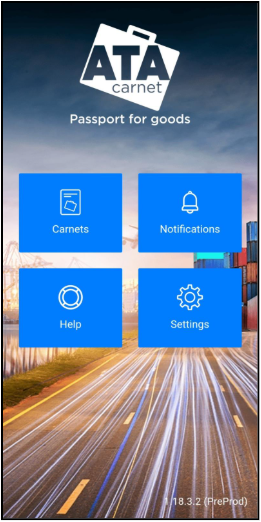
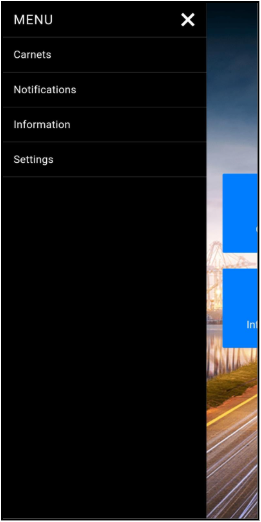
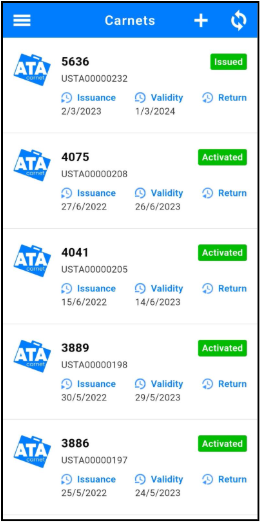
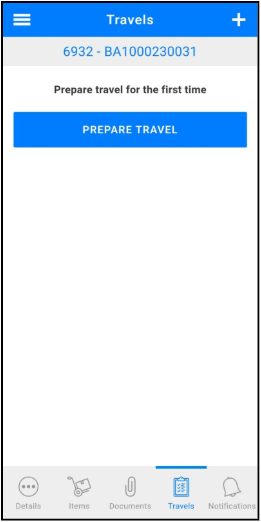
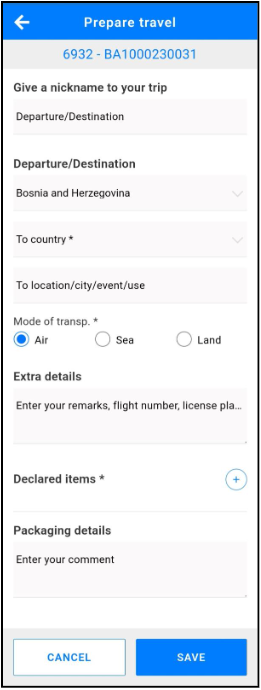
Before arriving at customs, you must prepare a travel declaration using the 'Prepare a Travel' feature. This step is essential for carnet holders or their representatives.
To prepare a travel:
|
|
|
|
|
|
|
|
|
|
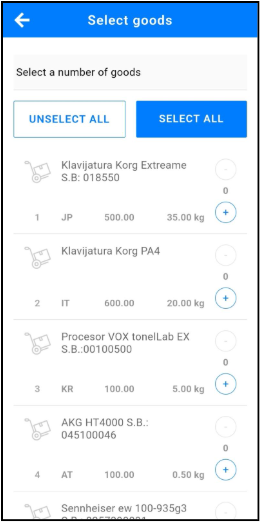
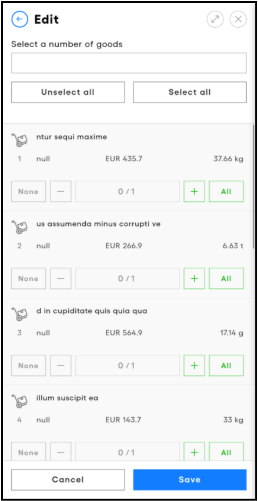
| Type in the goods to declare from the General List of the ATA Carnet in the field on the top of the screen to add them to the travel. You may also tap on Select all if required. Once all goods have been added, tap on the ← on the top left corner to go back to the Prepare Travel screen. |
|
|
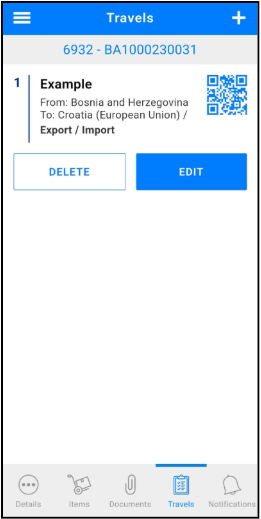
| To modify a travel, simply tap Edit travel and after the edits have been made tap Save and sign. You may also Delete prepared travels if needed and if not yet transacted. |
ATA Carnet Desktop
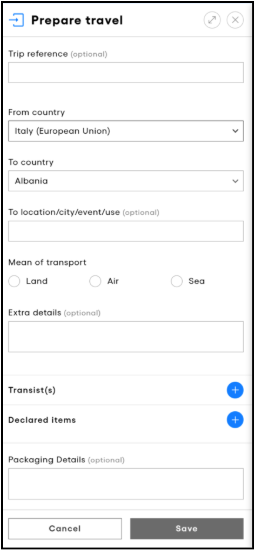
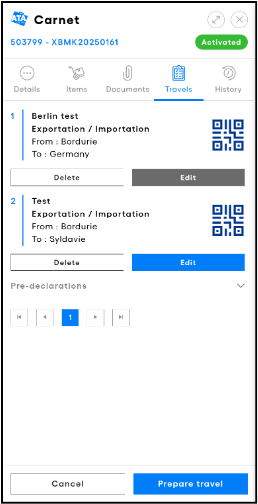
From the Carnets page, click on Details on the corresponding carnet you would like to use and then Prepare travel on the bottom of the screen.
|
|
|
|
|
|
Preparing vs Signing a Travel (Desktop only)
Administrative users may prepare travels and save them as Draft.
The travel must be signed by the holder or an authorised representative before declarations and QR codes become active.
General Rules Applicable to All Travel Preparations
Choosing the destination country
When preparing a travel, select the country where the importation transaction is expected to take place.
For movements into the European Union, you may indicate either:
- the first EU country of entry; or
- the final destination country within the EU;
because both belong to the same customs territory for ATA Carnet purposes.
The "To location / city / event / use" field is used to indicate the intended final destination, location, event or use of the goods. It is mandatory for Importation transactions. For other transaction types, it may be displayed as optional depending on the transaction context.
Changes to your itinerary after preparing a travel
The country selected during travel preparation is used to generate transaction codes and does not necessarily need to match the country where the transaction is eventually performed.
The ATA Carnet System validates declarations based on:
- the transaction type; and
- the customs territory where the transaction is processed.
Examples:
- A travel prepared for Norway may later be used for an Importation in the United Kingdom.
- A travel prepared from Finland may be used for an Exportation in Sweden because both belong to the European Union customs territory.
However:
- Validation, Exportation and Re-importation must be processed in the carnet's domestic customs territory.
- Importation and Re-exportation must be processed in a foreign customs territory.
- Transit may be processed in either territory as applicable.
Whenever possible, update the travel before the first Customs transaction so that travel records remain accurate.
The selection of countries during travel preparation supports transaction preparation only and does not constitute the formal Customs declaration, which takes place when the transaction is committed by Customs.
Travel synchronisation and sharing
Prepared travels automatically synchronise between devices using the same carnet.
A travel may be saved as a draft and completed later.
Before arriving at Customs, ensure all required information has been completed and the travel has been signed.
Once a travel has been signed, voucher QR codes may be shared with authorised representatives. See Sharing a Voucher for more information.
Each prepared travel consumes one available carnet set (Exportation, Importation, Re-exportation, Re-importation and Transit). Deleting an unused prepared travel restores the corresponding set.
Large Carnets (More Than 2,000 Items)
To ensure stable performance on mobile devices, the ATA Carnet App only supports travel preparation for carnets containing up to 2,000 General List items.
If the carnet exceeds this limit:
- Travel preparation must be performed using ATA Carnet Desktop.
- This is an expected limitation and not a system error.
After signing the travel in ATA Carnet Desktop, it will automatically synchronise to the mobile app and may be used normally at Customs.
Using “Any authorised representative”
If the carnet states “Any authorised representative”:
- A representative may prepare and sign a travel.
- The signer’s identity is recorded and visible to Customs.
- Customs may request a Power of Attorney if the representative is not explicitly named on the carnet.
If a representative cannot or does not wish to sign:
- The holder can sign the travel in advance on their own device.
- The resulting QR code can then be shared for presentation at the border.
Name spelling and characters
Users should enter their name exactly as shown on their official identity document, including diacritics where supported.
Minor spelling differences or character variations are not technically blocked by the system, but final acceptance remains at the discretion of Customs, as with paper carnets.
Was this article helpful?
That’s Great!
Thank you for your feedback
Sorry! We couldn't be helpful
Thank you for your feedback
Feedback sent
We appreciate your effort and will try to fix the article