TABLE OF CONTENTS
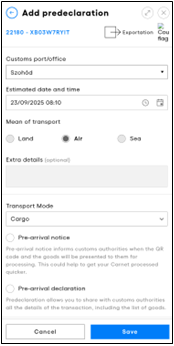
The digital Carnet includes two main options: pre-arrival notice and pre-arrival declaration. These options are only available for countries/customs territories and customs offices that support them. If the relevant country or customs territory does not support pre-arrival notice or declaration, the Predeclaration button may not appear or may be disabled.
- Pre-arrival notice lets you notify customs officers in advance about when you will present your QR code and goods for processing. Using this feature can help speed up the processing of your Carnet.
- Pre-arrival declaration (also known as Predeclaration) allows you to send all the transaction details, including the list of goods, directly to customs officers before you arrive.
- Remote commitment (available with pre-arrival declarations) gives customs the option to process your transaction remotely, so you do not need to present the QR code in person. This is typically used at locations that manage cargo or freight.
Availability by country / customs territory
Pre-arrival notice and pre-arrival declaration are not available for all countries or customs territories. If the country or customs territory involved in your travel does not support these features, the Predeclaration option may be disabled and only the QR code sharing option may be available.
This is expected behaviour and does not necessarily indicate a technical issue.
| Customs territory / country | Pre-arrival notice | Pre-arrival declaration | Pre-arrival declaration with remote commitment |
|---|---|---|---|
| EU – Greece | Mandatory | Optional | Optional |
| EU – Estonia | Optional | Optional | Optional |
| EU – Ireland | Optional | Optional | Optional |
| EU – Poland | Optional | Optional | Optional |
| EU – Austria | Optional | Optional | Optional |
Countries where pre-arrival notice/declaration is not yet supported
For all other countries/territories not listed above, pre-arrival notice and/or pre-arrival declaration are currently not supported in the eATA Carnet system.
Important:

– Pre‑arrival features are only available at Customs offices that support them

– A committed declaration cannot be modified

– In case of errors after commitment, the cancellation procedure applies

– Remote commitment is typically used for cargo or freight operations
ATA Carnet App
Here is how to use the pre-arrival notice and declaration function in the ATA Carnet App:
|
|
|
|
|
|
|
|
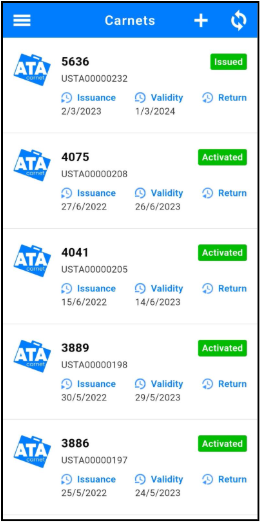
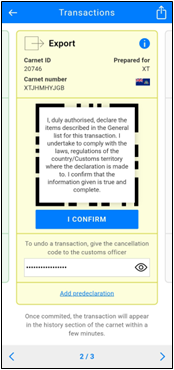
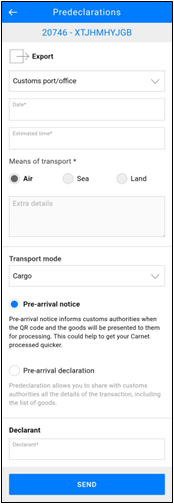
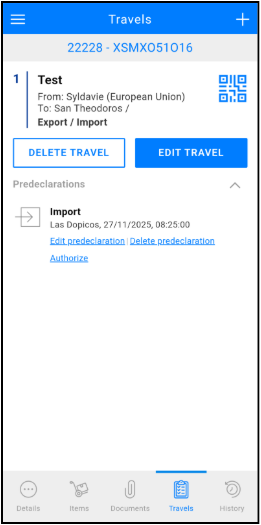
To revise or resend a pre-arrival notice or declaration, either return to the transaction and select ‘Update Predeclaration,’ or go to the ‘Pre-Declarations’ subsection under the Travels tab of a carnet and click ‘Update Predeclaration.’ You can also delete a notice or declaration from this section if needed.
If a declaration has been committed by Customs, the notice or declaration can no longer be revised. In case of mistakes, please follow the cancellation procedure.ATA Carnet Desktop
Here is how to use the pre-arrival notice and declaration function in the ATA Carnet Desktop:
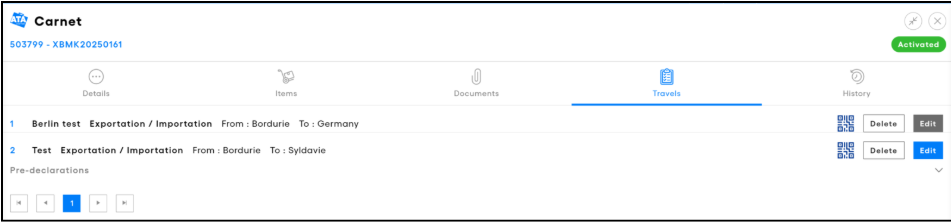
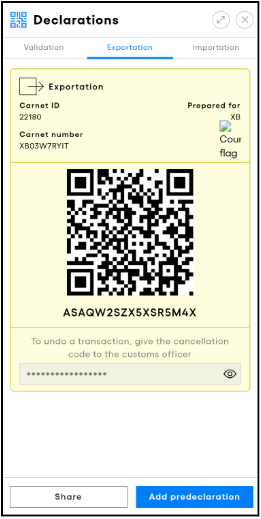
On the Carnets page, locate your carnet and click Details to open the carnet record. Go to the Travels tab, find the relevant prepared travel, and click the QR code icon to view transaction codes.
|
|
|
|
To revise or resend a pre-arrival notice or declaration, either return to the transaction and select ‘Update Predeclaration,’ or go to the ‘Pre-Declarations’ subsection under the Travels tab of a carnet and click ‘Update Predeclaration.’ You can also delete a notice or declaration from this section if needed.
If a declaration has been committed by Customs, the notice or declaration can no longer be revised. In case of mistakes, please follow the cancellation procedure.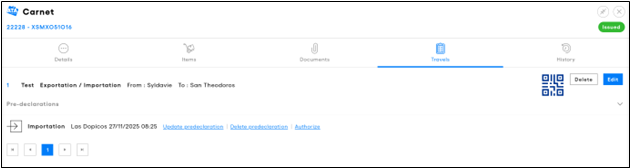
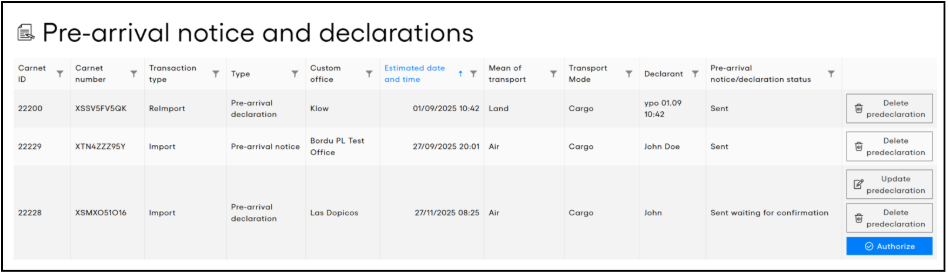
You can easily view and handle every pre-arrival notice and declaration for all your carnets in the Pre-arrival notice and declarations section of ATA Carnet Desktop, found on the side navigation bar.
Was this article helpful?
That’s Great!
Thank you for your feedback
Sorry! We couldn't be helpful
Thank you for your feedback
Feedback sent
We appreciate your effort and will try to fix the article