TABLE OF CONTENTS
- Signing before sharing
- What can be shared?
- ATA Carnet App
- ATA Carnet Desktop
- Transaction code sharing and use without the app
- Are supporting documents shared with the representative?
- What happens after Customs commits my transaction?
After travel arrangements are made, the ATA Carnet holder may provide the voucher(s) to a representative, who will then submit the declaration to customs. Only signed declarations can be shared.
Signing before sharing
A travel may be prepared by one person and signed by another authorised person.
Only signed travels generate active declarations and transaction QR codes.
If a travel remains in Draft status, its declarations cannot be shared with representatives or presented to Customs.
What can be shared?
In the ATA Carnet System, holders may share:
- Individual transaction vouchers (transaction codes displayed as QR codes) for a specific declaration.
- Multiple vouchers from the same travel.
- An entire carnet by providing the carnet ID and PIN code.
- Transaction receipts generated after Customs commits a transaction.
The holder remains responsible for any declaration submitted using the carnet, even when a representative performs the border crossing.
Important
Sharing a transaction code or carnet does not transfer responsibility. The ATA Carnet holder remains responsible for declarations submitted using the carnet, including those presented by authorised representatives.
ATA Carnet App
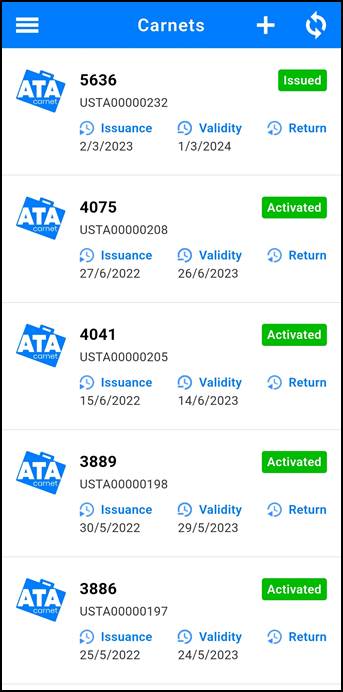
To share a voucher, the holder must:
| Tap on the ATA Carnet containing the prepared travel to be shared. |
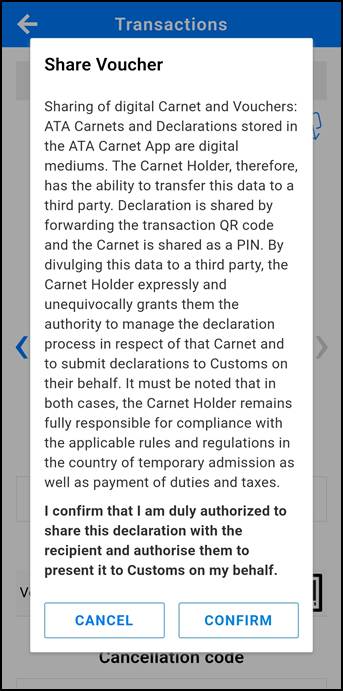
| Tap on the Travels tab in the lower menu. Tap on the QR code icon of the desired travel. Swipe right to the required transaction. Read carefully the terms and conditions and tap on the disclaimer box to accept them. Tap on the share icon |
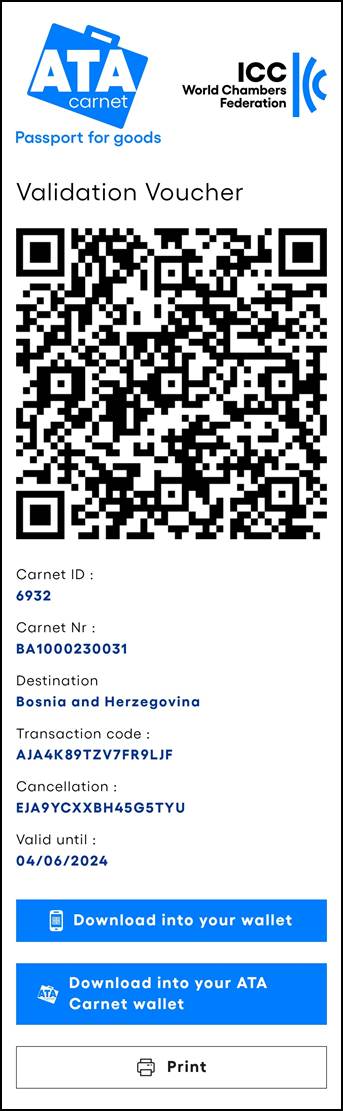
| The representative receives an email with a URL to the voucher, which can be saved offline by selecting "Save as PDF" from the print button or downloading it into the ATA Carnet app, Apple Wallet, Google Wallet, or any app supporting 'pkpass' files. The email includes the national carnet number to help recipients identify the correct carnet when managing multiple shipments. |

ATA Carnet Desktop
To share a voucher, the holder must:
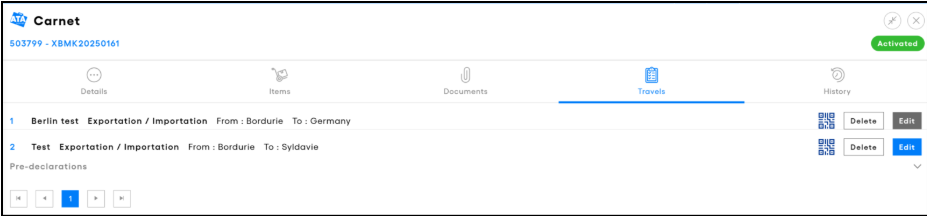
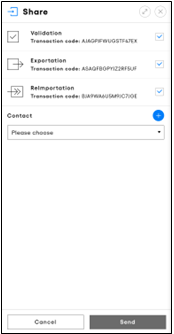
Click on Details of the desired carnet and navigate to the Travels tab. Locate the prepared travel containing the declarations to send and click on the QR code icon to view the transaction codes.
| |
| Select the transactions you wish to share. Select the contact you wish to share the transactions with. You can create new contacts by clicking on the + sign and entering the required details. Click on Send. The representative will receive an email containing the URLs to the selected transactions. The voucher-sharing email includes the national carnet number to help the recipient identify the relevant carnet. |
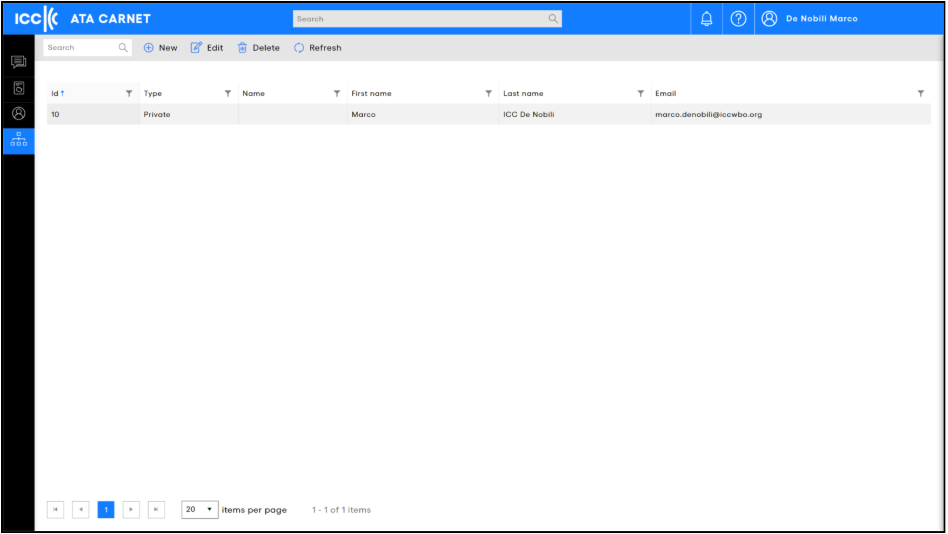
The Contacts section in ATA Carnet Desktop helps you efficiently manage and store contact details. Once a contact is saved, you can quickly select them when sharing carnets or vouchers in the future, so there’s no need to re-enter their information each time.
‘Contacts’ refers to the exporters or freight forwarders that your company, as the carnet holder, regularly shares vouchers with. Keeping this list up to date makes it simple to choose frequent recipients.
If the holder prefers, they can share the entire carnet with a representative by providing the carnet’s ID and PIN code. This allows the representative to download the carnet directly into their ATA Carnet app. Sharing the carnet ID and PIN provides access to the entire carnet rather than a single declaration. This method should only be used with trusted representatives because the holder remains responsible for all carnet operations performed using that carnet.
Viewing voucher-sharing history in ATA Carnet Desktop
Starting with ATA Carnet System version 2.3, ATA Carnet Desktop users can view a list of recipients with whom transaction codes have been shared.
The list is available within the relevant travel and displays:
- Transaction type
- User who shared the transaction code
- Recipient email address
- Date and time of sharing
For company accounts, users within the same company can see the sharing information recorded in that company’s ATA Carnet Desktop environment. If the same carnet is downloaded by another company, sharing activity from that other company is not displayed.
This functionality is available in ATA Carnet Desktop only. There is currently no equivalent sharing-history view in the ATA Carnet App.
The recipient list records that a transaction code was shared. It does not confirm that the recipient opened the link, accessed the declaration, forwarded the link or presented the transaction code to Customs.
Transaction code sharing and use without the app
The transaction code remains the same even if the declaration is edited.
A transaction code identifies:
- the Carnet ID; and
- the transaction code itself.
It does not contain the declaration data.
As a result:
- the same transaction code remains valid after a declaration is edited;
- previously shared links remain valid;
- previously saved QR codes remain valid;
- Customs always retrieves the latest version of the declaration when processing the transaction code.
A representative therefore does not normally need a new transaction code if the declaration is updated before Customs commits the transaction.
Customs retrieves the latest version of the declaration when the transaction code is processed. The transaction code itself does not contain the declaration data.
Using a transaction code without the app
The standard method is to share a link that provides access to the transaction code.
However, an offline format may be used in certain situations, for example when:
- the representative does not use the ATA Carnet App;
- it is not practical to open links at the border;
- a mobile device cannot be handed to Customs officers.
In such cases, the transaction code may be shared as:
- a QR code screenshot;
- a printed QR code;
- a PDF containing the transaction code.
The saved QR code remains usable because the underlying transaction code does not change when the declaration is edited.
When sharing a screenshot, printout or PDF, also share the cancellation code whenever possible. This allows a committed transaction to be cancelled and reprocessed if an error is discovered at the Customs office.
Are supporting documents shared with the representative?
Yes.
When a representative accesses a shared declaration, any declaration/pre-declaration attachments associated with that transaction remain available as part of the declaration.
Examples include:
- Powers of Attorney;
- Transport documents;
- Event-related documents;
- Other supporting evidence uploaded by the holder.
Because Customs retrieves the latest version of the declaration when processing the transaction code, updated attachments do not normally require a new transaction code to be shared.
What happens after Customs commits my transaction?
Once Customs commits the transaction:
- The transaction becomes part of the carnet history.
- A digital transaction receipt is generated.
- The holder normally receives the receipt by email.
- The transaction can no longer be edited unless Customs performs a cancellation procedure. This also applies to any attachments associated with the declaration.
Was this article helpful?
That’s Great!
Thank you for your feedback
Sorry! We couldn't be helpful
Thank you for your feedback
Feedback sent
We appreciate your effort and will try to fix the article