TABLE OF CONTENTS
ATA Carnet App
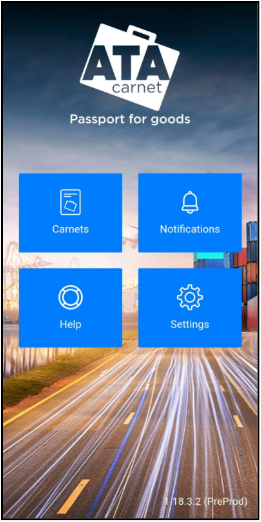
Once you have the app in your smartphone and have logged in, you can download an ATA Carnet to your ATA Carnet app.
| (a) Tap on Carnets from the main menu…
|
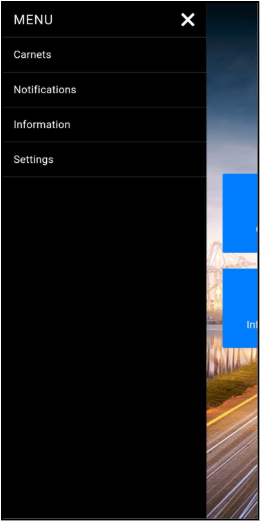
| (b) …or from the sidebar menu. |
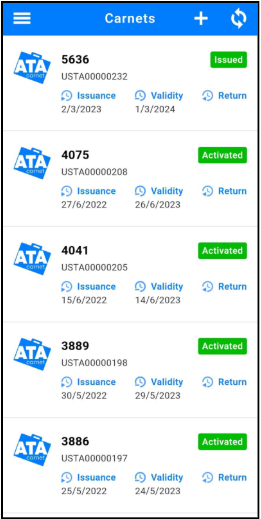
| Tap on the + button on the top right corner. |
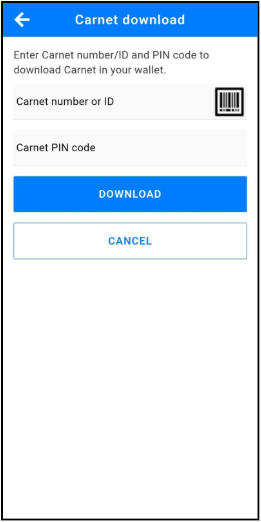
| Insert Carnet number or Carnet ID and Carnet PIN code as received from the issuing association or that has been forwarded to you from the ATA Carnet holder. Tap on Download. Alternatively, you may also scan the QR Code by tapping the barcode icon for a faster importation, if provided to you. |
Once downloaded, the Carnet can be signed by the holder or authorised representative and the declarations can be prepared via the prepare a travel function.
ATA Carnet Desktop
Once logged in, the Carnets section appears.
The ‘Carnets’ section is your main hub for managing all carnets in ATA Carnet Desktop. Whether you hold or manage shared carnets, this module offers an organized list of active and archived documents. You can quickly view details, track statuses, and perform actions like downloading, sharing, or updating carnet information, helping you efficiently manage multiple carnets and maintain compliance.
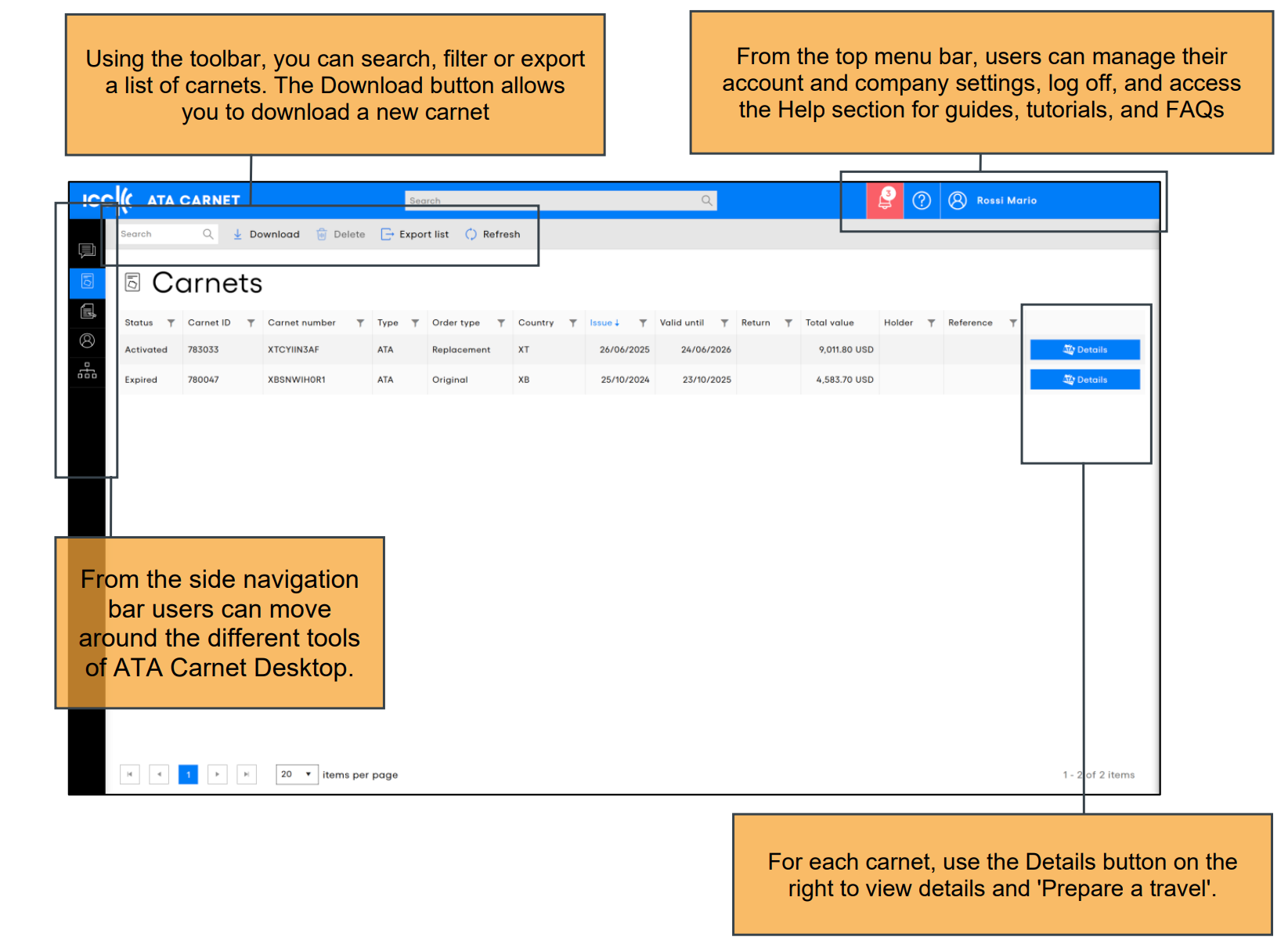
The export list function generates a .xls x file and are limited to 500 items .
Click Download on the toolbar to start downloading a Carnet or individual transactions.
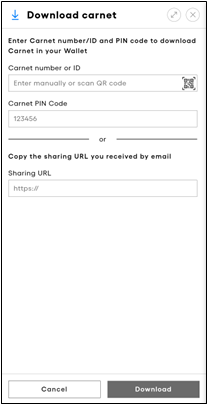
- To download the full carnet: Enter the Carnet number or Carnet ID and Carnet PIN code as supplied by the issuing association or forwarded from the ATA Carnet holder.
- Alternatively, scanning the QR Code by tapping the QR code icon allows for quicker importation, if available
- To download individual transactions shared with you: Copy the URL provided in the message from the carnet holder and paste it into the Sharing URL field.
- Click Download.
Was this article helpful?
That’s Great!
Thank you for your feedback
Sorry! We couldn't be helpful
Thank you for your feedback
Feedback sent
We appreciate your effort and will try to fix the article